Professional WordPress Theme for Healthcare
Helpline Nurse Theme – User Guide & Documentation
Welcome to the Helpline Nurse Theme. This specialized, professional WordPress theme is designed specifically for healthcare documentation agencies, nursing attestation services, and medical professionals.
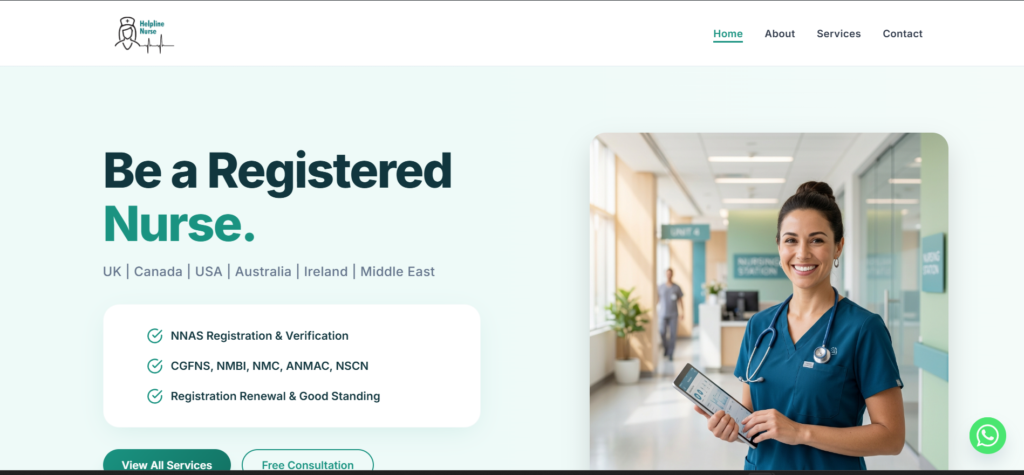
This guide provides step-by-step instructions for installing, configuring, and managing your website’s content.
1. Installation & Licensing
Theme Installation
- Upload the
helpline-nurse-themefolder to your/wp-content/themes/directory via FTP or your hosting file manager. - Log in to your WordPress admin dashboard and navigate to Appearance > Themes.
- Locate the Helpline Nurse theme and click Activate.
Note: The theme comes bundled with Secure Custom Fields (SCF) to manage options and page content. You do not need to install or purchase an external ACF/SCF plugin.
License Activation
To unlock full theme functionality and updates, activate your license key:
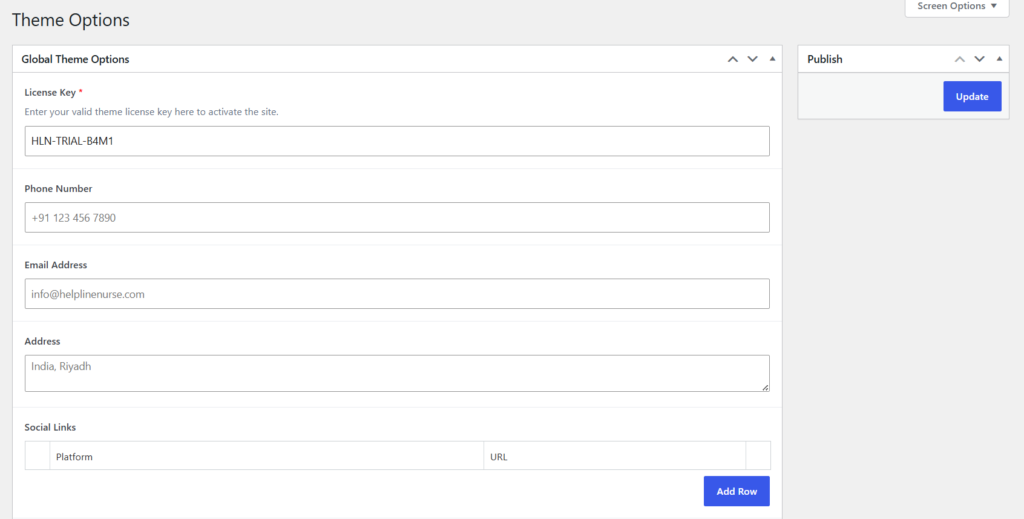
- Navigate to Theme Options in the left-hand WordPress admin menu.
- Paste your valid key into the License Key field.
- Click Update to save and verify.
If you are testing the theme, you can use the following trial key:
Trial Key (1-Month): HLN-TRIAL-B4M1
Purchase the full License Key from here. (if the link is not working, please contact)
2. Visual & Layout Customization
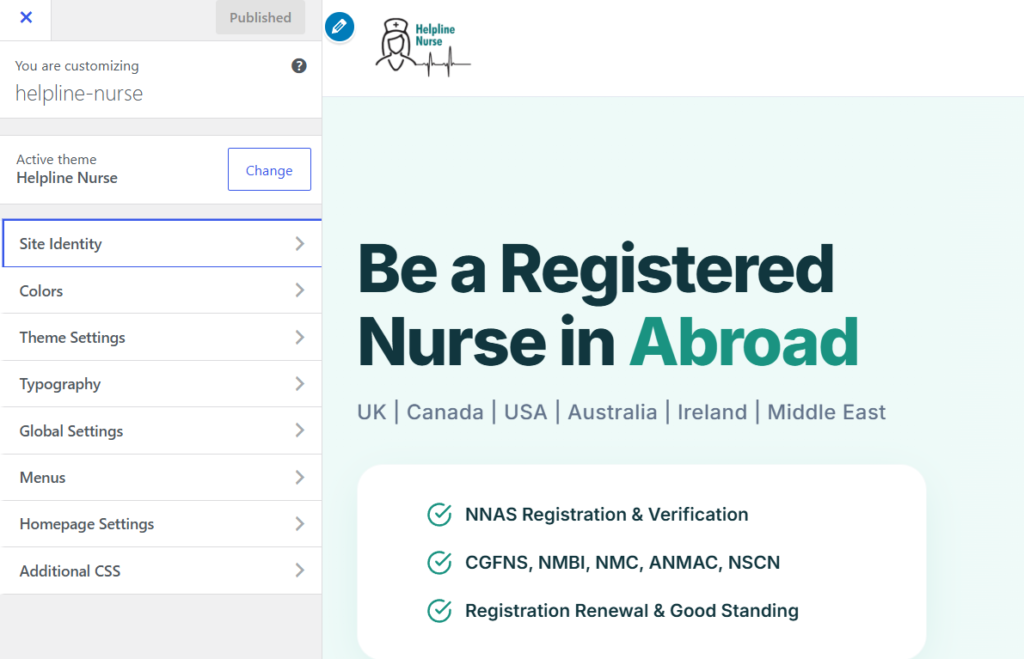
All visual aesthetic changes are managed via the native WordPress Customizer with live previews. Navigate to Appearance > Customize to access these settings.
Theme Settings (Logos & Menus)
- Header Logo: Upload a custom image to replace the default text title in the sticky navigation bar.
- Footer Logo: Upload a brand image optimized for the dark footer background.
- Menus: Assign your created menus to the Header Menu and Footer Menu locations.
Color Palette
Change the core color scheme of your website in real-time:
| Color Option | Primary Usage |
| Primary Color | Main call-to-action buttons, highlighted text, icons, and badges. |
| Secondary Color | Dark backgrounds (such as the footer area) and secondary buttons. |
| Text Color | Default reading color for standard body paragraphs across the site. |
Typography & Global Settings
- Base Font Family: Select from professional Google Fonts (Inter, Roboto, Poppins, Montserrat, Lato, or Open Sans). The theme automatically loads the required font assets.
- Border Radius: Adjust the roundness of cards, form inputs, and buttons ranging from Square (0px) to Pill (fully rounded).
- Enable Sticky Header: Toggle whether the main navigation bar remains fixed at the top of the screen while users scroll.
- Footer Agency Branding Text: Add custom text or HTML (e.g., “Designed by MyAgency”) beneath the standard copyright line.
3. Global Theme Options
Global business details are managed centrally via the Theme Options tab in the main WordPress sidebar.
- Contact Info: Enter your Phone Number, Email Address, and Physical Address. These fields automatically populate contact areas in the footer and on the Contact page.
- Social Links: Add URLs for your social profiles (Facebook, Instagram, LinkedIn, etc.) to automatically generate clickable icons in the footer.
- Footer Description: Write a brief company summary displayed in the left-hand footer column.
- Footer Copyright: Customize the copyright notice (e.g.,
© 2026 Helpline Nurse). - Default Fallback Images: Upload default thumbnail images for Services or Blog posts that do not have a specific featured image assigned.
4. Managing Page Content
This theme uses a structured, modular approach to page building. The default Gutenberg Block Editor is disabled for core pages. Instead, content is easily managed through intuitive custom fields.
Home Page Configuration
Create a page, set it as your static Front Page under Settings > Reading, and edit the following custom field groups:
- Hero Section: Customize the main headline, highlighted banner text, checklist items, background image, and two Call-to-Action (CTA) buttons.
- Value Proposition: A clean, text-focused section highlighting your agency’s core benefits.
- Services Overview: Select up to 3 Service posts to feature directly on the homepage.
- Why Choose Us: Configure up to 4 feature cards (with custom icon uploads) and dynamic live statistics/counters (e.g., “10k+ Visas Approved”).
About Page Configuration
Create a new page and assign the About Page template from the Page Attributes panel:
- Hero: Standard introductory page title and subtitle.
- Our Story: Paragraph blocks for company history paired with an accompanying image.
- Mission & Vision: Dedicated text blocks displaying your core organization values.
- CTA Block: A conversion-focused section encouraging visitors to contact your team.
Contact Page Configuration
Create a new page and assign the Contact Page template:
- Get in Touch: Edit introductory text, business hours, physical address, and direct links.
- Contact Form: Paste your form plugin shortcode (e.g., Contact Form 7 or WPForms) into the
Contact Form Shortcodefield. - Google Map Embed: Paste an interactive Google Maps iframe
srcURL to render a live location map.
5. Custom Post Types: Services
The theme includes a custom post type specifically for healthcare and documentation services. Add or edit these under the Services menu in the WordPress sidebar.
Each Service entry includes:
- Hero Subtitle: A concise description beneath the main service title.
- Overview / Content: The detailed explanation of the service provided.
- Key Features: A repeatable list field to highlight specific inclusions or benefits.
- Service FAQs: Add targeted frequently asked questions that automatically output as an interactive accordion/dropdown on the frontend.
6. Developer Notes
- CSS Architecture: Styling is governed by native CSS variables in
assets/css/style.css. The WordPress Customizer dynamically overrides these variables by injecting an inline<style>tag into the document<head>. - Template Structure: The theme utilizes modular template parts located within the
/template-parts/directory. - Repository Compliance Note: The theme currently bundles custom post types and custom fields directly. If you plan to publish this theme to the official WordPress.org repository, these data-definition features must be separated into a standalone plugin to comply with repository standards.