How to Migrate from Elementor to Bricks Builder Without Losing SEO
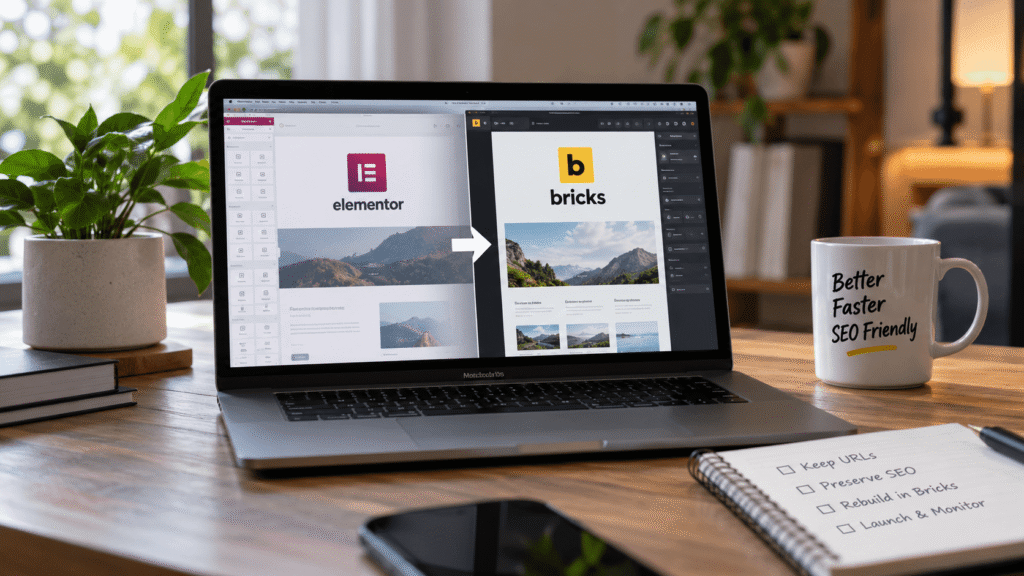
Elementor is one of the most popular ways to build a WordPress website, and for many sites it works well. But as a site grows, some owners want a lighter front end, cleaner HTML, and a more structured way to manage reusable sections. That’s usually when the question comes up: should we move from Elementor to Bricks Builder?
I’ve rebuilt Elementor websites in Bricks for clients, and the biggest risk isn’t the design. It’s losing the SEO work the old site built up: URLs, page titles, meta descriptions, internal links and image alt text. In this guide I’ll walk through the process I follow so a migration improves the site without dropping rankings.
Why Move from Elementor to Bricks?
Every project is different, and I don’t think Elementor is a bad choice. The common reasons clients ask me about Bricks are:
- Lighter front-end output with fewer wrapper elements and less CSS and JavaScript on each page.
- A more developer-friendly workflow with global classes, components, query loops and dynamic data built in.
- Easier long-term maintenance when repeated sections are built once as components and reused across the site.
- No separate Pro add-on stack for templates, theme building and dynamic content.
If you want to know more about how I approach Bricks projects in general, read how I build fast, custom WordPress websites with Bricks.
The Most Important Thing to Understand: There Is No One-Click Conversion
Elementor stores page layouts in its own data format, and Bricks uses a completely different one. There’s no reliable tool that converts an Elementor page into a clean Bricks page. In practice, a migration means rebuilding the design in Bricks while keeping all the content, URLs and SEO data that already work.
That’s actually a good thing. A rebuild is the chance to remove old widgets, unused plugins and messy layouts instead of carrying them over.
Step-by-Step: How I Migrate a Site from Elementor to Bricks
1. Audit the existing website
Before touching anything, I record what the current site is doing well:
- A full list of URLs (pages, posts, products, categories), exported from the sitemap or a crawler.
- Current titles and meta descriptions from Yoast SEO or Rank Math.
- Top pages and search queries from Google Search Console, so I know which pages matter most.
- Forms, popups, tracking scripts and integrations that need to keep working.
2. Build on a staging site, not the live site
I always create a copy of the website on a staging environment and do the rebuild there. Visitors keep using the existing Elementor site while the new version is built and tested.
3. Set up Bricks properly before building pages
This is where most of the long-term benefit comes from. Before building individual pages, I set up:
- Global colours, typography and spacing.
- Global classes for buttons, cards and section layouts.
- Header, footer and single post templates.
- Reusable components for sections that repeat across the site, such as call-to-action blocks, service cards and testimonials.
4. Rebuild pages on the same URLs
Each page is rebuilt in Bricks on the same URL it has today. Keeping URLs unchanged is the single most important part of protecting rankings. If a URL genuinely has to change, I add a 301 redirect from the old URL to the new one.
Your SEO plugin data (titles, meta descriptions, focus keywords, schema settings) is stored against the page itself, not inside Elementor. As long as the same page is edited in Bricks rather than deleted and recreated, that data stays in place.
5. Keep headings and content structure
While rebuilding, I keep one H1 per page and the same heading hierarchy, and I don’t silently drop content from pages that rank well. If a page is getting traffic, the words on it are part of the reason.
6. Migrate image titles, alt text and captions
This is the step that’s easiest to miss. When images are re-uploaded, renamed or optimised during a rebuild, the new site often ends up with different media IDs, and all the alt text from the old site is lost.
I built a free plugin for exactly this problem: Elementor to Bricks Media Migrator. It exports image metadata from the Elementor site, lets you visually match images page by page on the Bricks site, and copies the title, alt text, caption and description across without touching the image files.
7. Test before switching
Before going live, I test the new site on the real domain using the hosts file method, so I can check everything without affecting visitors. I’ve written a full guide on testing a WordPress site before changing DNS.
My checklist at this stage includes:
- Every URL from the original list loads (no 404s).
- Titles, meta descriptions and canonical tags are correct.
- Forms submit and emails arrive.
- Mobile layouts, menus and popups work.
- Page speed and Core Web Vitals are at least as good as before.
8. Launch, then monitor
After launch, I remove Elementor and any add-ons that are no longer used, clear all caches, submit the sitemap in Google Search Console and keep an eye on coverage errors and rankings for the next few weeks.
Common Mistakes to Avoid
- Changing URLs without adding redirects.
- Deleting old pages and creating new ones, which loses the SEO plugin data attached to them.
- Forgetting image alt text and captions.
- Leaving Elementor active after launch “just in case”, which keeps loading its assets.
- Launching straight onto the live site without staging and testing.
Is Bricks Right for Your Website?
Not every website needs to switch builders. If your Elementor site is fast, easy for your team to edit and doing its job, a migration may not be worth it. Bricks makes the most sense when you’re planning a redesign anyway, when performance is a priority, or when the site has many repeated sections that would benefit from components.
Planning an Elementor to Bricks migration? I’m a WordPress and Bricks Builder developer based in Kozhikode, Kerala, and I rebuild websites in Bricks while protecting the SEO work you’ve already done. See my WordPress services.