WooCommerce Speed Optimisation: 12-Point Checklist for a Faster Store
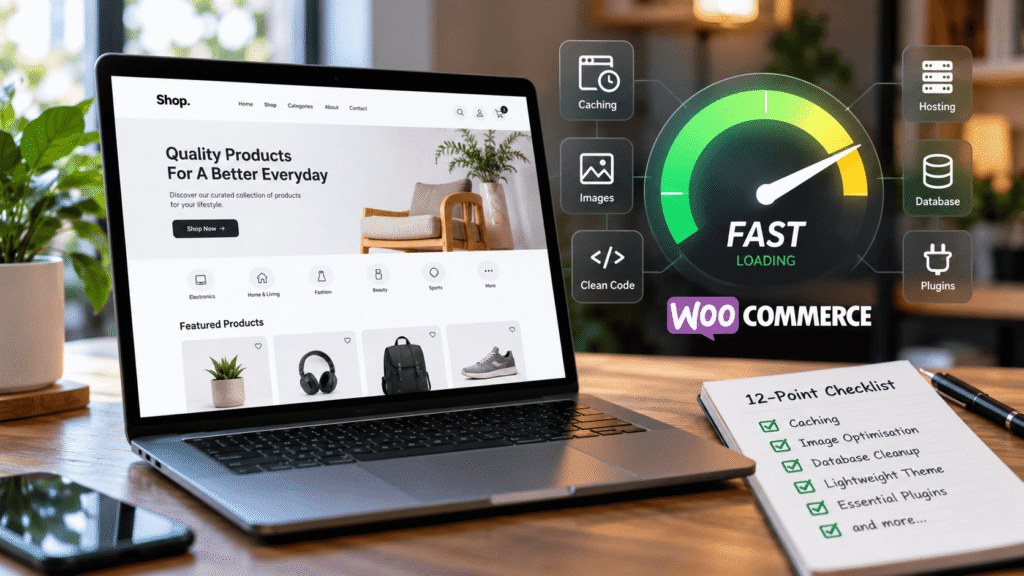
A slow WooCommerce store costs sales. Shoppers abandon product pages that take too long to load, and a laggy cart or checkout is one of the fastest ways to lose an order that was almost complete.
The tricky part is that WooCommerce is dynamic. Carts, checkouts and account pages can’t simply be cached like a blog post, so store speed depends on how well the whole stack is set up. Here’s the checklist I work through when a client tells me their WooCommerce store feels slow.
First, Measure Before You Change Anything
Before installing yet another optimisation plugin, find out where the time is actually going:
- Time to First Byte (TTFB) tells you how long the server takes to respond. If it’s high, the problem is usually hosting, PHP or the database.
- Core Web Vitals in Google PageSpeed Insights show front-end problems such as large images or render-blocking scripts.
- Dynamic actions such as Add to Cart, applying a coupon and loading checkout should be timed separately, because page caching doesn’t help them.
- Query Monitor (on a staging site) shows slow database queries and which plugin is causing them.
Server and Hosting
1. Use hosting that suits WooCommerce
WooCommerce needs more PHP workers, memory and database performance than a brochure site. Very cheap shared hosting is often the single biggest bottleneck. Look for hosting with up-to-date PHP, server-level caching and enough resources for traffic peaks such as sales.
2. Run a current PHP version, with OPcache enabled
Newer PHP versions are noticeably faster. But after upgrading PHP, check that OPcache is still enabled. On one store I worked on, switching PHP versions quietly disabled OPcache and Add to Cart slowed to about 1.5 seconds. Re-enabling OPcache brought it back to around 600ms. I wrote up the full story here: WooCommerce slow after a PHP update? Check OPcache first.
3. Add a persistent object cache
WooCommerce makes a lot of repeated database queries. A persistent object cache such as Redis or Memcached keeps the results in memory, which speeds up cart, checkout, My Account and the admin dashboard. Many good hosts offer Redis with one click.
WooCommerce Settings
4. Enable High-Performance Order Storage (HPOS)
HPOS stores orders in dedicated database tables instead of the general posts tables, which is faster for stores with many orders. New stores use it by default. Older stores can switch under WooCommerce → Settings → Advanced → Features, after checking that your plugins are compatible.
5. Cache everything that can be cached, and nothing that can’t
Use full page caching for the homepage, category pages and product pages, but make sure cart, checkout and My Account are excluded. Good caching plugins and most managed hosts handle these WooCommerce exclusions automatically, but it’s worth confirming.
6. Watch the cart fragments request
WooCommerce uses an AJAX request (wc-ajax=get_refreshed_fragments) to keep the mini cart up to date. On some themes it runs on every page and can’t be cached. If your store doesn’t show a live mini cart on every page, limiting this request can make a noticeable difference.
7. Clean up scheduled actions, transients and autoloaded options
Over time, stores build up thousands of completed scheduled actions, expired transients and large autoloaded options left behind by old plugins. Cleaning these up reduces database load on every request. Always take a backup first.
Front End
8. Optimise product images
Product galleries are often the heaviest part of a store. Resize images before uploading, serve WebP or AVIF, and make sure images below the fold are lazy-loaded. Keep the main product image loading immediately, as it’s usually the Largest Contentful Paint element.
9. Use a lightweight theme and builder
A heavy multipurpose theme with sliders, animations and several bundled page builders adds weight to every page. A lightweight theme, or a clean build with a performance-focused builder such as Bricks, gives the store a much faster foundation.
10. Audit plugins and third-party scripts
Every plugin and tracking script adds work. Remove plugins that aren’t used, replace several small single-purpose plugins where one will do, and load chat widgets, review widgets and marketing pixels only where they’re needed.
11. Use a CDN
A CDN serves images, CSS and JavaScript from servers closer to your customers. It’s especially helpful if you sell to customers in other states or countries.
Ongoing
12. Test after every major change
WooCommerce, PHP, theme and plugin updates can all change performance. After major updates, re-test TTFB, page speed and the Add to Cart and checkout flow. Five minutes of testing can catch a problem before your customers do.
Quick Checklist
- Hosting that suits WooCommerce
- Current PHP version with OPcache enabled
- Persistent object cache (Redis or Memcached)
- HPOS enabled
- Page caching with cart, checkout and account excluded
- Cart fragments under control
- Database cleaned up
- Optimised product images
- Lightweight theme and builder
- Only the plugins and scripts you need
- CDN in place
- Re-test after every major update
For general WordPress speed tips that apply to any site, read my guide on how to make a WordPress website load faster.
Need help with a slow WooCommerce store? I’m a WooCommerce developer based in Kozhikode, Kerala. I build new stores and find and fix performance problems in existing ones. See my WooCommerce and WordPress services.